
Deadline Afterlife Processing Stuttering: How to Fix Frame Drops and Lag
Deadline Afterlife Processing stuttering stems from frame rate variance, motion blur overhead, and overlay conflicts. Adjusting the built-in frame limiter, disabling background overlays, and matching system requirements restores consistent frame delivery across shifts.
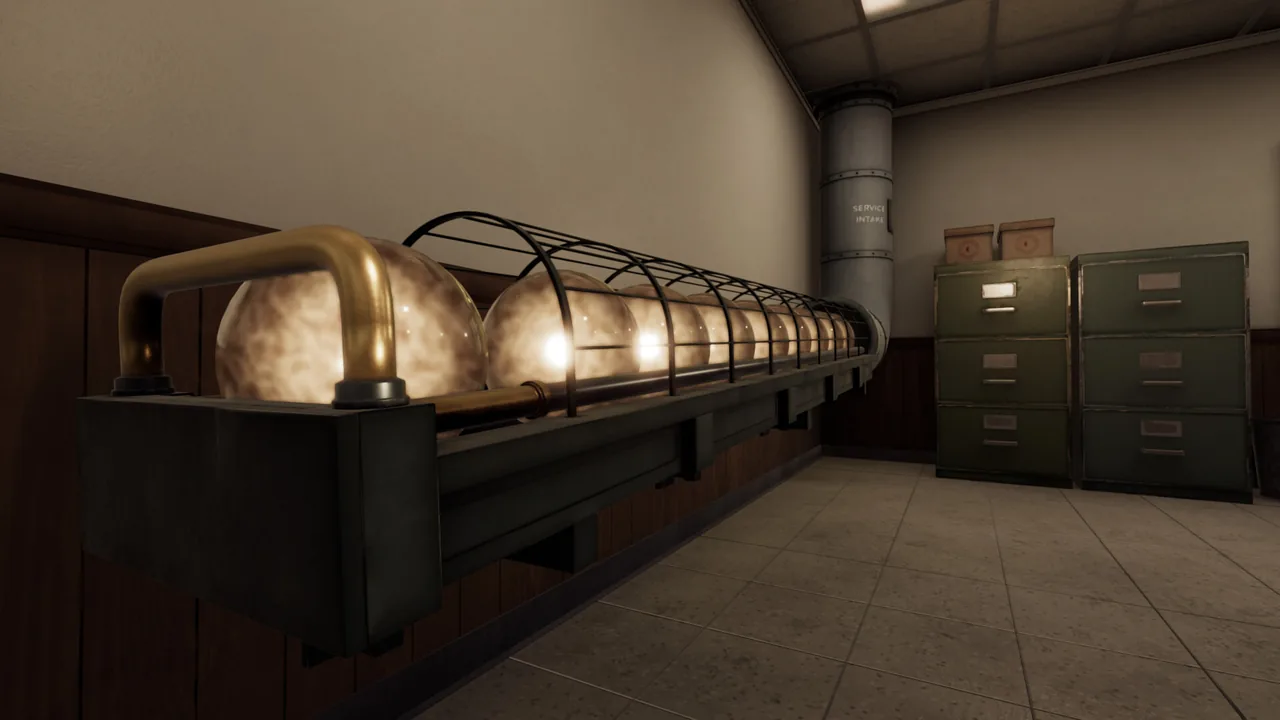
Deadline Afterlife Processing stuttering stems from frame rate variance, motion blur overhead, and overlay conflicts. Adjusting the built-in frame limiter, disabling background overlays, and matching system requirements restores consistent frame delivery across shifts.
The indie paperwork simulator developed by MD Studio places operators at Station 9, processing souls via physical levers, stamp mechanisms, and mechanical conveyor lines. While the game features no floating HUD elements, its physics-driven office space and unconstrained rendering pipeline can create uneven frame pacing. Reports on the Steam community forums show that even rigs running modern graphics cards encounter dramatic frame spikes, where averages hover around 60 FPS while 1% lows plummet toward 15 FPS.
Hardware Requirements and Baseline Settings
Performance hitches occur frequently when the rendering engine attempts to push uncapped frames or when hardware falls beneath the DirectX 12 baseline. The Steam store page lists specific operational thresholds for PC configurations:
| Hardware Component | Minimum Requirement | Recommended Specification |
|---|---|---|
| Operating System | Windows 10 64-bit | Windows 10 64-bit |
| Processor | Intel Core i5-4460 / AMD equivalent | Intel Core i5-8400 / AMD Ryzen 5 2600 |
| Memory | 8 GB RAM | 16 GB RAM |
| Graphics Card | NVIDIA GTX 960 / AMD R9 280 (2GB VRAM) | NVIDIA GTX 1070 / RTX 2060 or AMD RX 5700 (6GB VRAM) |
| DirectX | Version 12 | Version 12 |
| Storage | 4 GB available space | 4 GB available space (SSD recommended) |
Installing the game on a standard mechanical drive can introduce micro-freezes when loading assets between shifts, making an SSD installation preferable for smooth operation.
In-Game Settings and Display Adjustments
Official Next Fest patch notes show that the developer updated the build to run lighter on graphics cards by default, alongside adding dedicated performance toggles. Activating these options inside the settings menu directly stabilizes your gameplay loop:
- Enable the frame limit option in the display menu to prevent the engine from fluctuating between low lows and extreme highs.
- Turn off motion blur to eliminate unwanted render passes and address motion sickness while inspecting documents.
- Lower basic graphics quality presets if you are operating on mobile hardware, such as laptop GPUs, where thermal throttling drops rendering speeds.
- Verify that the display resolution matches your monitor's native output so the engine does not struggle with internal downsampling.
After configuring your baseline display settings, examine how peripheral tools and background processes interact with the client.
System Tweaks and Performance Optimization
External utilities running on Windows often intercept draw calls, exacerbating frametime instability while you read soul fragments or pull the mechanical levers.
| Optimization Step | Targeted Issue | Expected Tradeoff |
|---|---|---|
| Set Windows Priority to High | Inadequate CPU resource allocation to main threads | Increases background app latency while the game runs |
| Disable Steam Overlay | Draw call overhead and frametime variance | Disables shift-tab community access and screenshot toasts |
| Update GPU Drivers | Incompatible DirectX 12 shaders or driver-level bugs | Requires system restart and driver utility installation |
To disable the Steam overlay:
- Open the Steam desktop client and navigate to your Library.
- Right-click DEADLINE: Afterlife Processing and select Properties.
- Select the General tab on the left menu.
- Toggle off the setting labeled Enable the Steam Overlay while in-game.
To assign higher process priority through Windows Task Manager:
- Launch the game from Steam.
- Press Ctrl + Shift + Esc to open Task Manager, then click the Details tab.
- Locate the primary executable process for the game.
- Right-click the process, hover over Set Priority, and choose High.
Applying these system adjustments eliminates erratic frame spikes, keeping your workstation fully responsive so you never face failed judgments caused by unresponsive input lag. If the application refuses to launch entirely rather than stuttering during shifts, consult the dedicated resolution steps for crash on startup errors.
Related Guides
Retained Orb Guide
Resolve the shift 5 retention order by stamping subject 5099 and storing the orb in cradle 302.
Demo Overview
Understand shift structures, sorting rules, upgrade station mechanics, and hardware requirements for the Steam demo of Deadline Afterlife Processing.
Demo Gameplay
Examine Station 9 mechanics, amber screen soul records, and catalog upgrades showcased in clean no commentary gameplay.