
Deadline Afterlife Processing Motion Sickness: Settings and Fixes
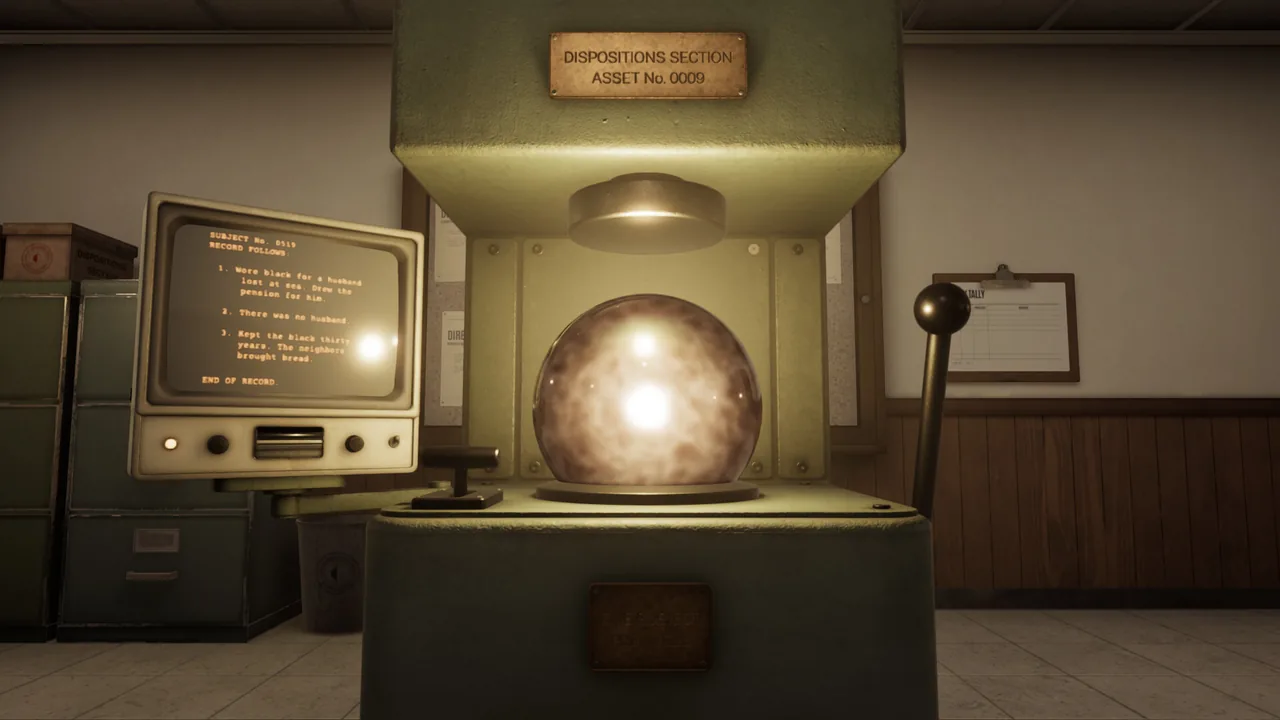
Deadline Afterlife Processing motion sickness can be reduced by disabling motion blur, turning off head bobbing, and adjusting camera movement speed in the settings menu. Capping the frame rate also stabilizes rendering across shifts at Station 9.
Deadline Afterlife Processing motion sickness can be reduced by disabling motion blur, turning off head bobbing, and adjusting camera movement speed in the settings menu. Capping the frame rate also stabilizes rendering across shifts at Station 9.
Adjusting Camera Movement and Head Bobbing
The first-person perspective at Station 9 requires operators to look repeatedly between amber terminal screens, the verdict press, and disposition chutes. Because visual bobbing during walking causes vestibular disorientation for sensitive players, MD Studio included an option to toggle head bobbing off directly in the pause and settings menus.
Turning off head bobbing keeps the camera plane flat while walking between the line and the paperwork desks. Players using a mouse or gamepad also encounter rapid turn speeds by default. Lowering sensitivity settings helps smooth out camera pans across the desk, preventing sudden spins when inspecting soul papers.
Display and Performance Options
Fast visual shifts in dimly lit rooms can trigger nausea when accompanied by graphic smoothing or erratic frame delivery. The developer updated the demo during Steam Next Fest to include specific graphic toggles that ease visual strain.
Disabling motion blur stops the game from smearing text fragments and environmental edges whenever the operator looks away from the terminal. In addition, activating the frame limit option keeps hardware output steady, which prevents rapid spikes in frame times that contribute to stuttering and motion discomfort.
| Setting | Intended Visual Issue | In-Game Result |
|---|---|---|
| Head Bobbing | Screen bounce while walking | Locks the camera height to a flat plane during movement |
| Motion Blur | Peripheral smearing during turns | Keeps text fragments and room geometry sharp while rotating |
| Frame Limit | Uneven frame timing and visual pacing | Caps GPU output to deliver steady image pacing |
Physical Control Adjustments
Physical mouse movements across the desk can heighten disorientation during long shifts. In earlier builds, operating the machinery required dragging the mouse across wide surfaces. Updates to the control scheme allow operators to hold right-click on a mouse or press RT on a controller to engage the confirmation lever. Using hold prompts instead of broad mouse swipes stabilizes posture and eliminates erratic cursor swings while managing soul files.
Related Guides
Retained Orb Guide
Resolve the shift 5 retention order by stamping subject 5099 and storing the orb in cradle 302.
Crash on Startup
Check official hardware baselines and demo patch files to resolve immediate launch failures when opening the afterlife processing station on PC.
Demo Gameplay
Examine Station 9 mechanics, amber screen soul records, and catalog upgrades showcased in clean no commentary gameplay.